Performing Inspections in the Web Portal
Run inspections from the Core web portal: open a job's Inspection Reports tab, add inspections against one or many equipment items, and view the certificate.
Last updated
Once you have scheduled a job using the steps mentioned above you can perform inspections against that job. To do this please take the following steps.
-
Go to "Jobs" in the menu.
-
Search for the job and click "open"
-
Go to the "Inspection Reports" tab.
-
Click "Add New Inspection".
-
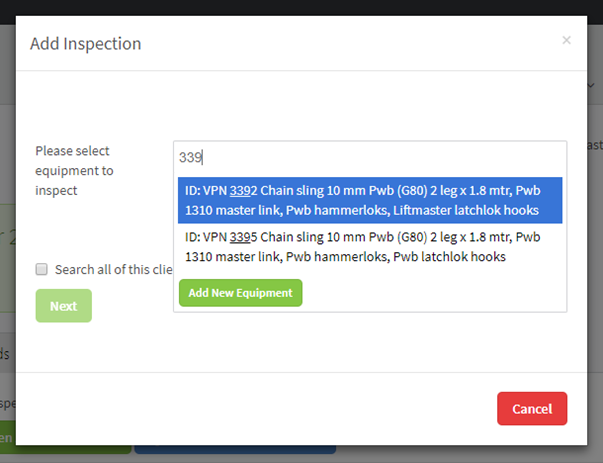
The screen shown below will appear. In the text box titled "Please select equipment to inspect" start typing the description of the equipment to inspect or if it is a new item select "Add New Equipment"
-
If inspecting existing equipment, you are able to select multiple items of the same type at this stage (eg multiple round slings).
-
Select Next.
-
Select the inspection type and select next.
-
Fill in the relevant criteria and follow the prompts.
-
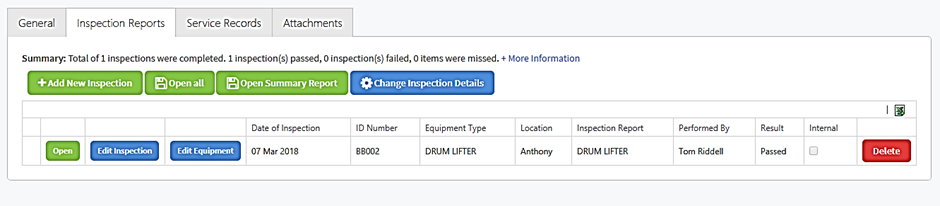
The equipment will now appear on the inspection Reports tab of the job as shown below.
-
To view the certificate select "Open".