Customer Portal — Getting Started
How clients log in to the Core Inspection Client Portal to view job and equipment registers, download certificates and reports, plus login troubleshooting.
Last updated
Getting Started and Logging In
What is the Client Portal?
The Core Inspection Client Portal is your online hub for viewing inspection records, equipment registers, and certificates. It gives you secure access to all the inspection data your provider has recorded for your organisation, including job history, equipment status, inspection results, photos, and downloadable reports.
Through the portal you can:
- View and search your Job Register: a record of all inspection jobs performed for your organisation
- View and search your Equipment Register: a complete list of your equipment with inspection status, due dates, and history
- Download inspection certificates and summary reports as PDFs
- Export registers to Excel/CSV for your own record-keeping
- View inspection photos and download attached documents
Depending on permissions set by your provider, you may also be able to upload attachments, change equipment locations, and archive equipment.
Logging In
There are two ways to access the Client Portal:
Option 1: Standard Login
Your inspection provider sets up a login for you and sends you an invitation email. Your username is your email address, and you choose your own password.
Setting your password the first time
- Open the most recent invitation email and click the link. The link works once and is valid for 5 days.
- Type your new password in both boxes. The page shows the password rules, and passwords are case sensitive.
- Click Reset Password. You go straight into the portal.
If the page says the link has expired or is no longer valid, click Email me a new password link on that page.
Logging in after that
- Open the login page URL from your provider in your web browser.
- Enter your email address in the Username field.
- Enter your password in the Password field.
- Click Log In.
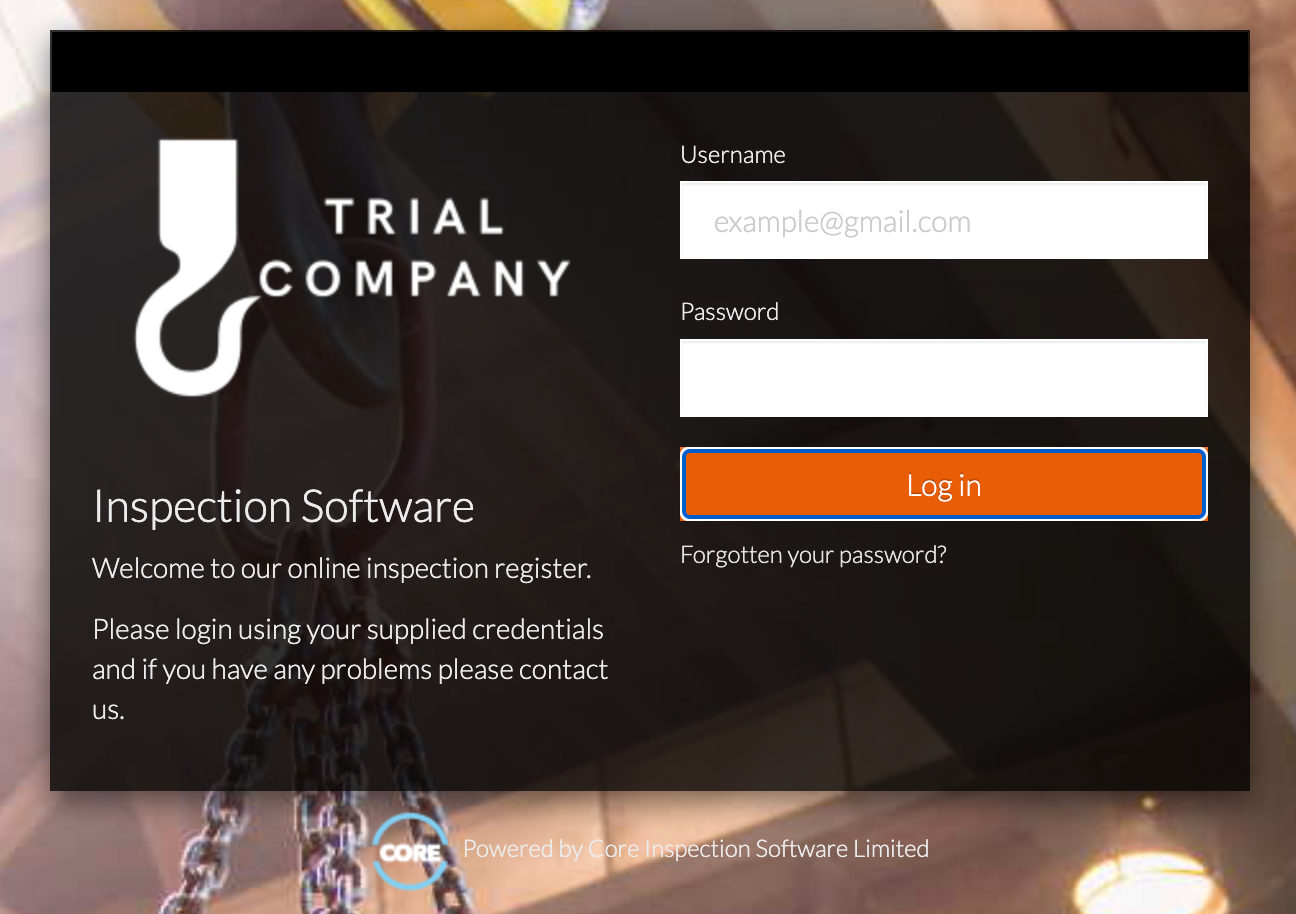
Forgotten your password? Click Forgotten your password? on the login page and enter your email address. We'll email you a link to set a new password. Like the invitation, it works once and is valid for 5 days, and each new email replaces the link in any earlier one.
Option 2: Auto-Login Link
Some providers will send you a direct login link (for example, in an email or message). Simply click the link and you will be logged in automatically, with no username or password required.
Tip: Bookmark the login page or auto-login link in your browser for quick access in future.
After Logging In
Once logged in, you will see the main navigation menu at the top of the page with two primary sections:
- Job Register: view inspection jobs and their results
- Equipment Register: view your equipment and their inspection history
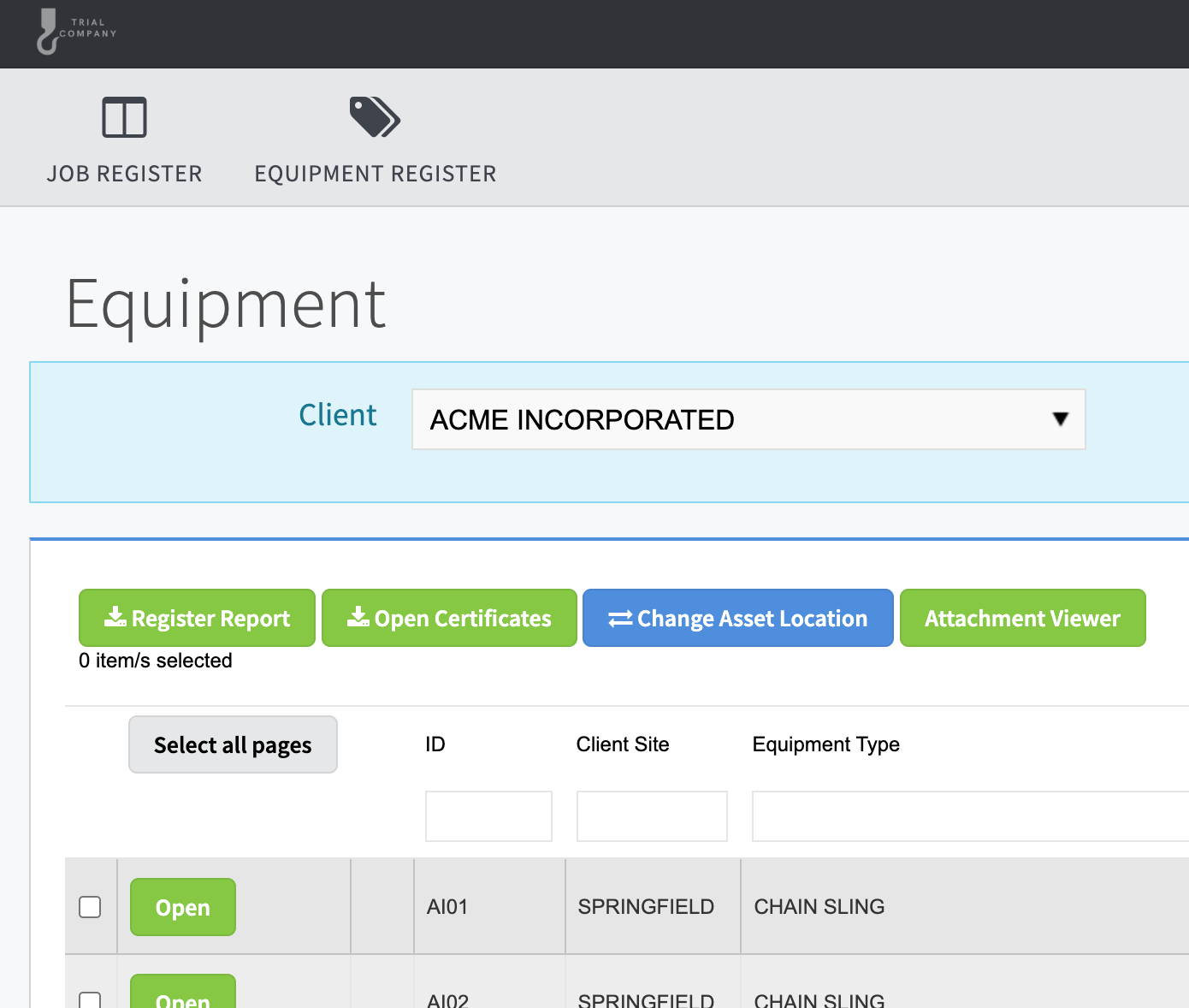
Click either option to get started. See the dedicated guides for each register for full details:
Troubleshooting
| Problem | Solution |
|---|---|
| I don't have login credentials | Contact your inspection provider and ask them to set up a Client Portal login for you. |
| My password isn't working | Check the email address, and remember passwords are case sensitive. If it still fails, click Forgotten your password? on the login page to set a new one. |
| The login page says my account is locked | Too many wrong passwords in a row lock the login. Click Forgotten your password? and set a new password, which also unlocks it, or ask your provider to reset it. |
| My password link has expired or is no longer valid | Links work once and are valid for 5 days, and a newer email replaces an older one. Use the most recent email, or click Email me a new password link on the page. |
| The password page won't accept my password | The red message on the page says what needs changing: too short, too long, or the two boxes don't match. |
| I can't see any data after logging in | Your provider may not have assigned any locations to your account yet. Contact them to confirm your account is set up correctly. |
| My auto-login link has stopped working | Auto-login links can expire or be regenerated. Contact your provider for an updated link. |